
How to Prepare Windows PCs for Autopilot Before They Reach Your Customer
A PC can be registered for Windows Autopilot and still not be ready to ship.
The operating system may be outdated. Drivers may be missing. The wrong Windows edition may be installed. The device may not match the customer’s deployment profile. A reseller can complete the administrative work in Intune and still deliver hardware that creates avoidable setup problems.
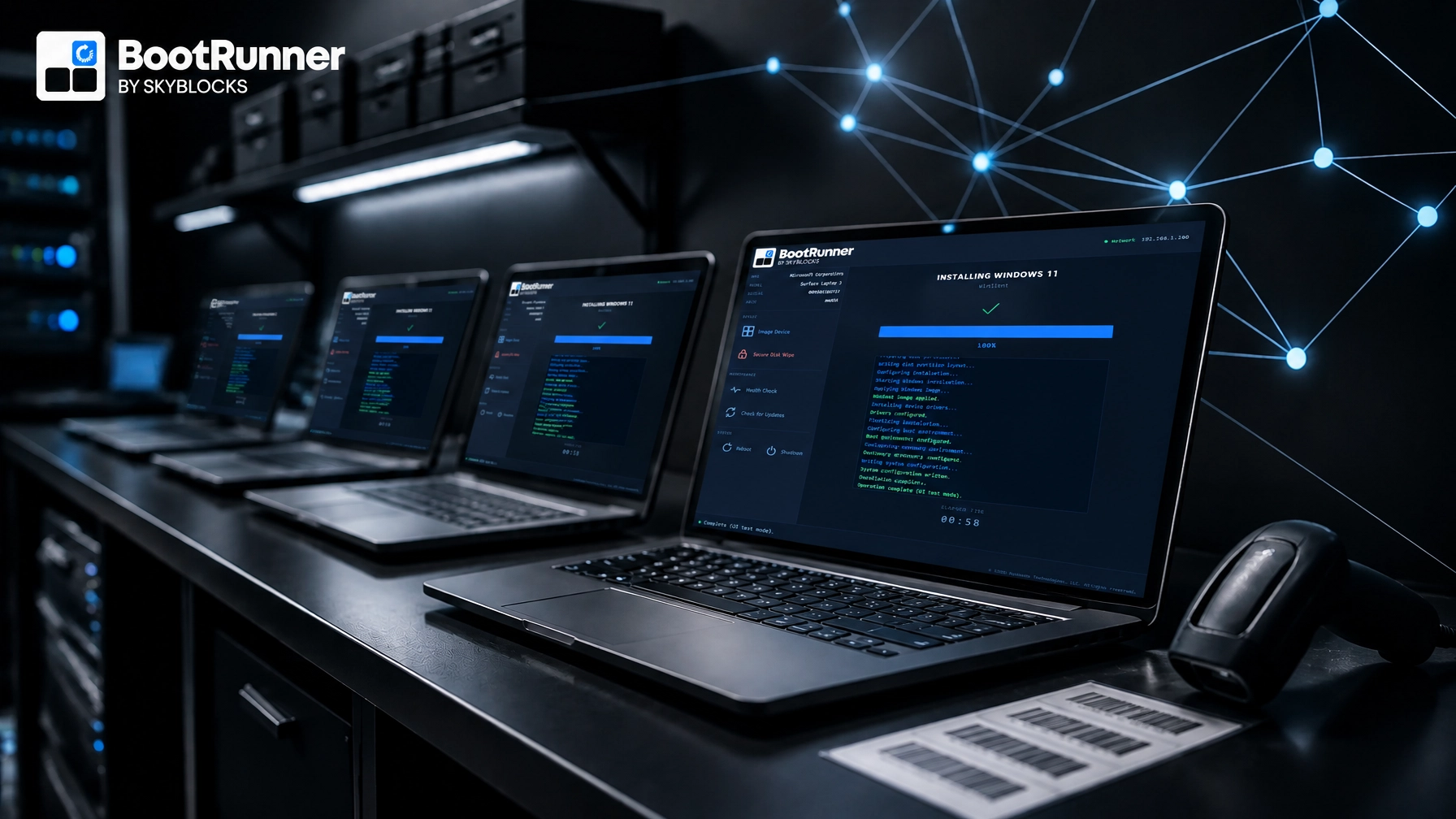
We’ve seen this distinction matter in real deployments: Autopilot manages the customer’s device after Windows is ready. BootRunner gets Windows ready before the customer receives it.
For VARs and resellers, BootRunner is built specifically around the hardware-readiness problems they encounter before customer enrollment. It provides a repeatable way to prepare new, returned, or reimaged PCs before they enter the customer’s Microsoft 365, Microsoft Entra ID, and Intune workflow.
Start with the customer’s Autopilot scenario
The preparation process depends on how the customer intends to deploy the devices.
Microsoft documents several Windows Autopilot scenarios, including:
- User-driven deployment for a device assigned to one user.
- Pre-provisioned deployment where a technician completes much of the device setup before shipment.
- Self-deploying mode for shared or kiosk-style devices.
- Existing devices where Windows must be reinstalled before Autopilot enrollment.
For most new business PCs shipped by a reseller, the practical choice is user-driven or pre-provisioned deployment.
User-driven deployment leaves more of the process for the customer. The end user connects the PC to the internet, signs in, and receives the assigned configuration through Autopilot and Intune.
Pre-provisioned deployment moves part of the work to the reseller. The technician prepares the device, validates that the assigned profile and applications apply correctly, and reseals the PC before shipment. The customer still completes the user portion of Autopilot, but the device reaches the desktop with less work left to do.
Review Microsoft’s Windows Autopilot scenarios before defining your staging process. The scenario determines what the customer’s tenant must provide and what your warehouse or staging facility must validate.
Confirm the tenant is ready before staging hardware
Hardware preparation cannot compensate for an unprepared customer tenant.
Before you stage a device, confirm that the customer tenant is actually ready for enrollment work to begin:
- The required Intune and Microsoft Entra licensing.
- Automatic Windows enrollment for the target users.
- Appropriate permissions for Microsoft Entra device join.
- Device groups for profiles, applications, compliance policies, and security settings.
- A Windows Autopilot deployment profile assigned to the intended devices.
- An Enrollment Status Page configured for the customer's expected setup experience.
- Application assignments in the correct device or user scope.
Your staging workflow prepares the Windows installation and validates the physical device. The customer’s Intune configuration controls tenant-specific policies, applications, security settings, and user enrollment.
Do not turn a common Windows image into a collection of customer-specific settings. Let Autopilot and Intune apply the customer’s configuration after the device is identified and enrolled.
“Keep the image consistent. Keep the customer configuration in Intune.”
Verify the Windows installation and hardware
A supported Autopilot workflow still depends on a functioning Windows installation and compatible hardware.
Before a device leaves your facility, verify that the Windows edition matches the customer’s licensing and deployment plan, that Windows is current enough for the intended Autopilot scenario, and that the device has the required firmware and security capabilities. TPM 2.0 must be available when the selected scenario requires device attestation. The necessary storage, networking, graphics, chipset, and security device drivers should be in place, the device should start cleanly into the expected Windows setup experience, and the serial number should match the inventory record.
BootRunner’s built-in Health Check covers storage, battery, TPM status, network link, and CPU behavior under load, without a separate diagnostic-software license.
This is the point where BootRunner does the work Autopilot is not designed to do.
BootRunner applies the current Windows image together with the correct supported model-specific drivers and firmware in one guided flow. Its core device-preparation workflows can operate offline or in air-gapped environments, so the hardware can be prepared before the device joins the customer’s network.

This matters when you handle multiple device models or prepare hardware for several customers.
Register devices through the right channel
For standard Windows Autopilot registration, the device must be associated with the customer’s tenant before deployment. Microsoft describes this as two related steps:
- The device’s hardware identity is registered with the Windows Autopilot service.
- The device is associated with the customer’s tenant ID.
For a reseller, the preferred path is usually OEM, distributor, or partner registration. Microsoft specifically recommends that partners use PKID information from the device packaging or electronic OEM data instead of booting every new device to collect hardware hashes.
If you are an eligible Cloud Solution Provider partner, Microsoft allows device registration through Partner Center after the customer approves the required relationship. The exact responsibility depends on your distributor, OEM, and customer agreement.
Use Microsoft’s reseller and partner registration guidance to confirm the supported process for your channel position.
BootRunner complements this process by preparing the Windows installation and hardware before enrollment.
Each part of the process stays cleaner when it is handled in its own place:
- OEM or partner process: Registers the device with the customer tenant.
- BootRunner: Prepares the image and the supported driver and firmware set for the model.
- Autopilot and Intune: Enroll the device and apply customer-specific configuration.
Use BootRunner before pre-provisioned Autopilot
Pre-provisioned Autopilot is useful when the customer wants less hands-on work at first sign-in. Microsoft’s process splits deployment between a technician and the end user.
The technician phase can apply device-targeted policies, certificates, security settings, and supported applications. The device is then resealed and shipped. The end user completes the remaining sign-in and user-specific configuration.
BootRunner strengthens the stage before that technician phase.
Use it to establish a dependable Windows starting point:
- Apply the current Windows image and the drivers and firmware matched to the model.
- Use the core preparation workflow offline or in an air-gapped environment when required.
- Use the separate secure disk-wipe workflow when preparing returned or repurposed hardware, with deliberate technician confirmation before destructive action.
- Run the built-in hardware checks.

Microsoft’s pre-provisioned deployment guidance covers the requirements for the technician and user flows. Pre-provisioning requires supported physical hardware, TPM 2.0 with device attestation, Intune, network connectivity, and an appropriate Enrollment Status Page configuration. It still assumes the device begins with a sound Windows installation.
Validate the handoff before shipment
Create a shipment checklist that proves the handoff is complete rather than assuming a successful power-on tells you enough. At minimum, verify:
- The device serial number matches the packing record.
- The device is registered or assigned through the agreed Autopilot process.
- The correct deployment profile applies.
- The Windows edition is correct for the customer’s plan.
- The device starts without unexpected local setup prompts.
- Network connectivity works through the expected setup stage, especially where pre-provisioned work depends on it.
- Required drivers function before the device is shipped.
- The customer’s tenant receives the device as expected.
- Any pre-provisioned work completes successfully and leaves the device in the right state for handoff.
- The device is resealed correctly for the end user.
Keep the result with the shipment record. A short device-level report is more useful than a generic statement that the batch was tested.
For returned or repurposed hardware, include cleanup in the process. Microsoft notes that devices leaving an organization should be removed from Intune and deregistered from Windows Autopilot in the correct order. A device that is reused without proper cleanup can retain the wrong tenant association or create enrollment confusion later.
The right division of work
Our comparison of BootRunner and Autopilot covers the distinction in more detail, but the operating model is straightforward:
BootRunner prepares the Windows and hardware baseline. Autopilot provisions the device, and Intune manages it.
BootRunner gives you a consistent way to apply Windows, match the device with its supported driver and firmware set, and prepare hardware offline when required before it reaches the customer. From there, the customer’s own tenant handles enrollment, Microsoft Entra join, Intune management, application delivery, compliance, and ongoing policy enforcement.
In practice, that division gives you a better answer when a customer asks why a device that was “already in Autopilot” was not actually ready to use.
The device was registered. The work was not finished.
If your current process depends on manual Windows setup, inconsistent driver handling, or last-minute staging corrections, review the workflow before the next shipment. Learn more about BootRunner or contact Skyblocks to discuss the hardware, customer tenants, and deployment scenarios you manage, and we’ll start with the process you have now and identify where the handoff needs to become more reliable.