

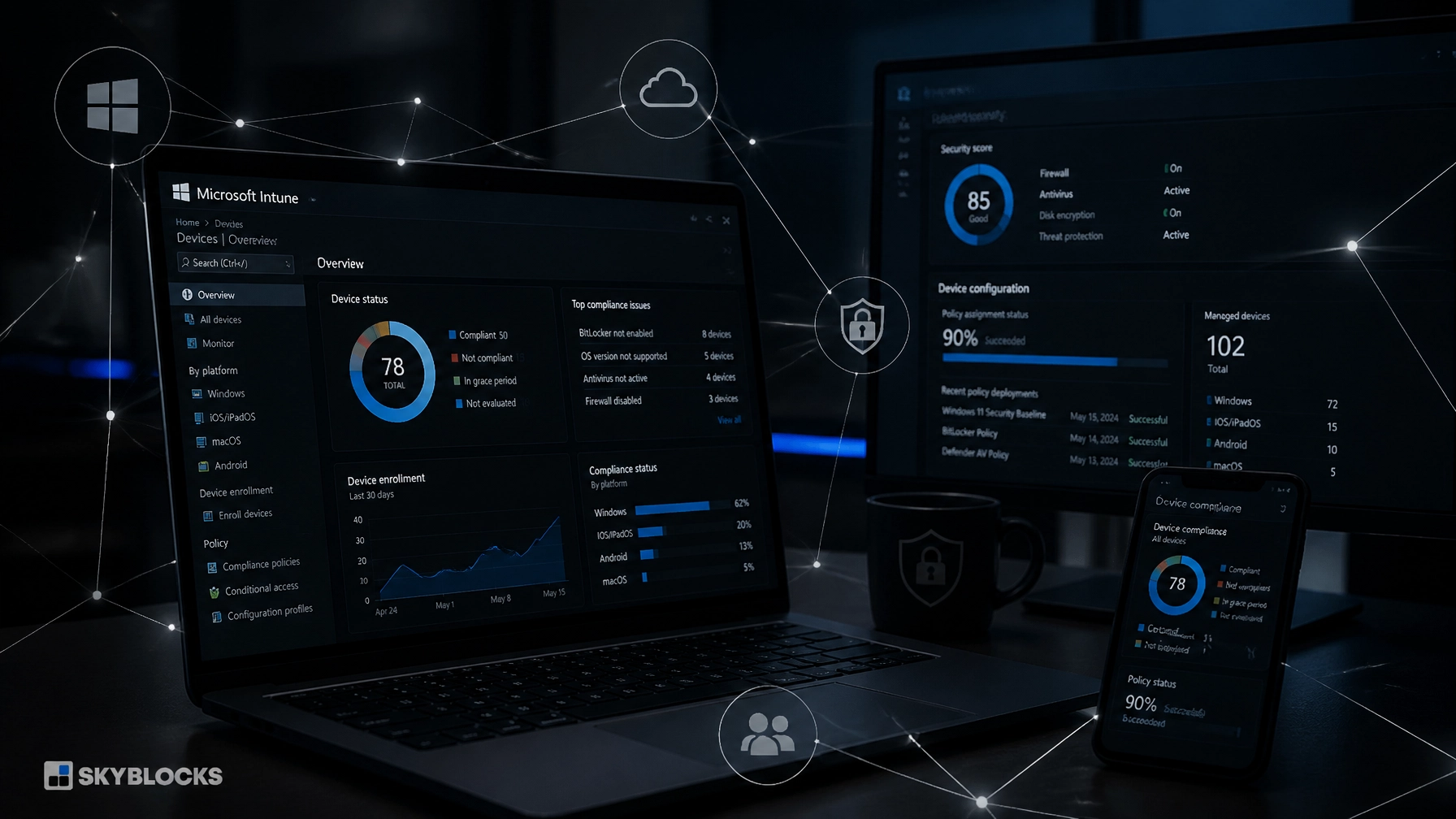
Windows Intune vs RMM: Which Is Better for Small Business IT?
We’ve helped businesses move from loosely managed PCs to structured Microsoft 365 environments, secure endpoint policies, and repeatable Windows deployments. The same question comes up often:
Do we need Microsoft Intune, an RMM platform, or both?
In 2026, the answer has changed. Microsoft Intune now covers more of the work traditionally associated with endpoint management and remote support. For many Microsoft-centric small businesses, Intune can replace overlapping tools and reduce monthly software spend.
But Intune is still not a traditional RMM.
The practical answer is straightforward:
Use Intune for policy, security, compliance, and device lifecycle management. Use an RMM for continuous monitoring, alerting, automation, and service operations.
Some small businesses need both. Many can run Intune alone. The right choice depends on what your IT operation must detect and fix every day.
Intune and RMM solve different problems
Microsoft Intune is a cloud-based endpoint management platform. It enrolls devices, applies configuration, deploys applications, evaluates compliance, and connects device health to Microsoft Entra Conditional Access.
That makes Intune a policy engine. It defines how a device should be configured and whether that device should be trusted with access to business resources.
An RMM, or remote monitoring and management platform, works differently. It installs an agent that continuously observes devices and systems. It raises alerts, runs scripts, manages patches, provides remote access, and often connects those events to a PSA or ticketing system.
That makes an RMM an operational tool. It watches what devices are doing and helps IT respond when something changes.
Both are useful. They are not interchangeable by default.

What Windows Intune does well

Intune is strongest when your business runs primarily on Microsoft 365, Windows, and Microsoft Entra ID.
With a well-designed Intune architecture, we can manage:
- Windows enrollment and configuration
- Microsoft 365 application deployment
- BitLocker, Defender, firewall, and security policies
- Windows security baselines
- Compliance policies
- Conditional Access requirements
- Application protection for mobile and BYOD scenarios
- Device lifecycle actions, including retire, wipe, and reset
- Windows Autopilot provisioning
- macOS, iOS, iPadOS, Android, and Linux endpoints
Intune handles the full managed-device lifecycle. A new device can be registered with Windows Autopilot, joined to Microsoft Entra ID, enrolled in Intune, and configured with required applications and security policies without a technician manually building the PC.
That matters for small business IT support because it reduces the number of one-off decisions. Devices receive the same baseline. New employees receive the same standard configuration. Departing employees can have company data removed without necessarily wiping personal data from a BYOD device.
Intune also connects device compliance to access control. A device can be required to have encryption enabled, a supported Windows version, active antivirus protection, and an acceptable Defender risk level before it is allowed to access Microsoft 365 data.
Security is designed into the access decision rather than checked after an incident.
Intune’s expanded capabilities in 2026
Microsoft has expanded the capabilities available through Microsoft 365 E3 and E5. Remote Help is now included with those enterprise plans, subject to the licensing terms associated with your agreement and renewal date. This gives organizations secure, role-based remote assistance for Intune-managed devices.
Endpoint Privilege Management is also part of Microsoft’s advanced Intune strategy. It allows standard users to run approved applications or tasks that require elevation without making them permanent local administrators. Current licensing generally places EPM with Microsoft 365 E5 or a separate Intune Suite or EPM entitlement, so confirm the exact rights attached to your plan.
The important point is not the product packaging. It is the consolidation opportunity.
If your business already pays for Microsoft 365 E3 or E5, you may have access to endpoint capabilities that were previously purchased through separate tools. We regularly find organizations paying for overlapping remote support, policy management, and security products without a clear reason for keeping all of them.
What an RMM still does better
RMM platforms remain strong in operational monitoring.
They are designed to answer questions such as:
- Is a server service down right now?
- Is disk space approaching a defined threshold?
- Did a backup fail overnight?
- Is CPU or memory usage abnormal?
- Did a device miss a patch window?
- Is a scheduled script failing across multiple endpoints?
- Has a network device stopped responding?
- Should this alert automatically create a ticket?
Intune provides reporting and device status. It is not primarily a real-time monitoring system with the depth, polling frequency, alert rules, and remediation workflows found in a mature RMM.
An RMM is also usually better for unattended remote access. Intune Remote Help is built around secure, role-based helpdesk assistance. Traditional RMM tools commonly support unattended access to servers, headless systems, and workstations outside normal business hours.
RMM platforms also retain advantages in:
- Continuous health monitoring
- Alerting based on performance and service conditions
- Automated remediation scripts
- Broad third-party application patching
- Server and network-device management
- Backup monitoring and integration
- Multi-tenant dashboards for managed service providers
- PSA ticketing and service workflows
- Cross-platform operational support
This distinction matters. A device can be compliant in Intune and still have a failing disk, a stopped application service, or a backup problem. Compliance is not the same as operational health.
Windows Intune vs RMM: the practical comparison
| Capability | Microsoft Intune | Traditional RMM |
|---|---|---|
| Device configuration | Excellent | Basic to moderate |
| Security policy | Excellent | Usually depends on integrations |
| Compliance and Conditional Access | Excellent | Limited |
| Windows Autopilot | Native | Usually not native |
| Microsoft 365 integration | Native | Varies |
| Application deployment | Strong, especially for Microsoft apps | Strong for scripted and catalog-based deployment |
| Real-time monitoring | Limited compared with RMM | Core capability |
| Alerting | Available, but policy-oriented | Core capability |
| Unattended remote access | Limited compared with RMM | Common capability |
| Third-party patch automation | Improving, but varies | Usually stronger |
| Server monitoring | Limited | Strong |
| Backup monitoring | Usually requires other tools | Commonly integrated |
| PSA and ticketing workflows | Limited | Common in MSP platforms |
| Multi-tenant management | Not designed as an MSP console | Core capability |
| Mobile and BYOD management | Strong | Usually limited |
The table explains why simple “Intune versus RMM” comparisons often produce confusing answers. The platforms overlap, but their design centers are different.
When Intune alone is enough
Intune alone may be the right choice for a small or mid-market business when most of the following are true:
- You operate one Microsoft 365 tenant.
- Most endpoints are Windows laptops and desktops.
- You already license Microsoft 365 E3 or E5.
- Your main concerns are security, compliance, configuration, and application deployment.
- You rarely need unattended remote access.
- You do not manage a large server estate.
- You do not need intensive monitoring of network devices.
- You do not require alert-to-ticket automation.
- Third-party patching requirements are manageable through Microsoft tools, application packaging, or a focused patching solution.
This is where many businesses can cut overlapping spend.
A properly configured Intune environment can provide device enrollment, Windows Autopilot, security baselines, BitLocker enforcement, Defender integration, compliance policies, Conditional Access, application deployment, and secure remote assistance.
The platform is especially effective when your IT support model is structured around prevention and standardization rather than reacting to every endpoint condition in real time.
However, Intune is not automatically effective just because the license exists. Poor group design, conflicting policies, inconsistent naming, weak enrollment controls, and unmanaged exceptions can make Intune difficult to operate.
The architecture matters more than the checkbox.

When you should keep an RMM
An RMM remains justified when your business needs operational visibility that Intune does not provide efficiently.
Keep or add an RMM if you manage:
- Windows or Linux servers
- Remote or branch-office infrastructure
- Network switches, firewalls, or other appliances
- Critical line-of-business services
- Devices that require after-hours maintenance
- Backups that must be monitored continuously
- A large number of third-party applications
- Multiple independent client environments
- A service desk that depends on automatic ticket creation
RMM is also the better fit for an MSP or VAR managing several customers. Multi-tenant dashboards, customer separation, policy inheritance, alert queues, technician workflows, and PSA integrations are central to that model.
Intune can be part of the customer environment, but it is not a replacement for the MSP’s operational platform.
For many providers, the strongest model remains:
- Intune for customer endpoint policy and compliance
- RMM for monitoring, remote access, patching, and automation
- PSA for tickets, service history, contracts, and reporting
- Backup and security platforms for dedicated protection and recovery
The tools should have distinct responsibilities. Running two platforms that both attempt to configure the same settings creates conflicts, duplicated alerts, and unclear ownership.
The best answer for many SMBs: Intune first, RMM where needed
For most Microsoft-focused small businesses, we recommend starting with Intune rather than automatically buying an RMM.
First, define the endpoint standard:
- Enroll devices consistently.
- Build security baselines.
- Configure BitLocker, Defender, firewall, and update policies.
- Deploy required applications.
- Connect compliance to Conditional Access.
- Use Windows Autopilot for new-device provisioning.
- Document exceptions and ownership.
Then identify the operational gaps.
Do you need live service monitoring? Add an RMM. Do you need unattended remote access? Add an RMM. Do you need backup alerts or server automation? Add an RMM or a focused tool for that function.
Do not purchase a full RMM simply because “every business needs one.” Many do not.
Do not remove an RMM simply because Intune is included in Microsoft 365. That can leave servers, backups, alerts, and after-hours support without adequate coverage.
Consolidation works when responsibilities are clear. It fails when tools are removed before the missing capability is understood.
How Skyblocks approaches Intune architecture
Skyblocks designs Microsoft 365 and Intune environments around the way the business actually operates. We work on identity, enrollment, Windows Autopilot, security policy, compliance, application deployment, and device lifecycle: not just the initial configuration.
We also look at the surrounding support model. If you need real-time monitoring, server management, or ticket automation, we will say so. If Intune already covers the requirement and an RMM would duplicate it, we will say that too.
Our work includes Microsoft 365 and Azure architecture, endpoint management, security hardening, and technical roadmapping. We also build BootRunner, a Windows imaging platform designed for fast, secure, repeatable provisioning at scale. BootRunner integrates with Intune and Autopilot, giving organizations a dependable starting point before cloud policies and applications are applied.
Learn more about Skyblocks IT consulting or see how BootRunner supports Windows deployment.
Final recommendation
For a Microsoft-centric small business, Windows Intune is usually the better foundation. It gives you policy, security, compliance, identity integration, application management, and modern Windows provisioning in one platform.
An RMM is better for continuous operational management. It earns its place through real-time monitoring, alerting, unattended access, patch automation, backup workflows, server support, and multi-tenant service delivery.
The decision is not about choosing the tool with the longer feature list.
It is about identifying what must be governed, what must be monitored, and what your IT support process must do when something fails.
If you are reviewing overlapping tools, we can help you map the current environment, identify the gaps, and decide whether Intune alone is enough. Start with a conversation. We’ll give you a direct answer about the fit.